If a Retailer has published a supplier product from StockShare to Shopify and followed all steps in this guide, but the product is showing as “Sold Out” or not appearing on the Shopify website (see below examples), it is most likely because the product has not been assigned to the StockShare fulfilment location in Shopify.
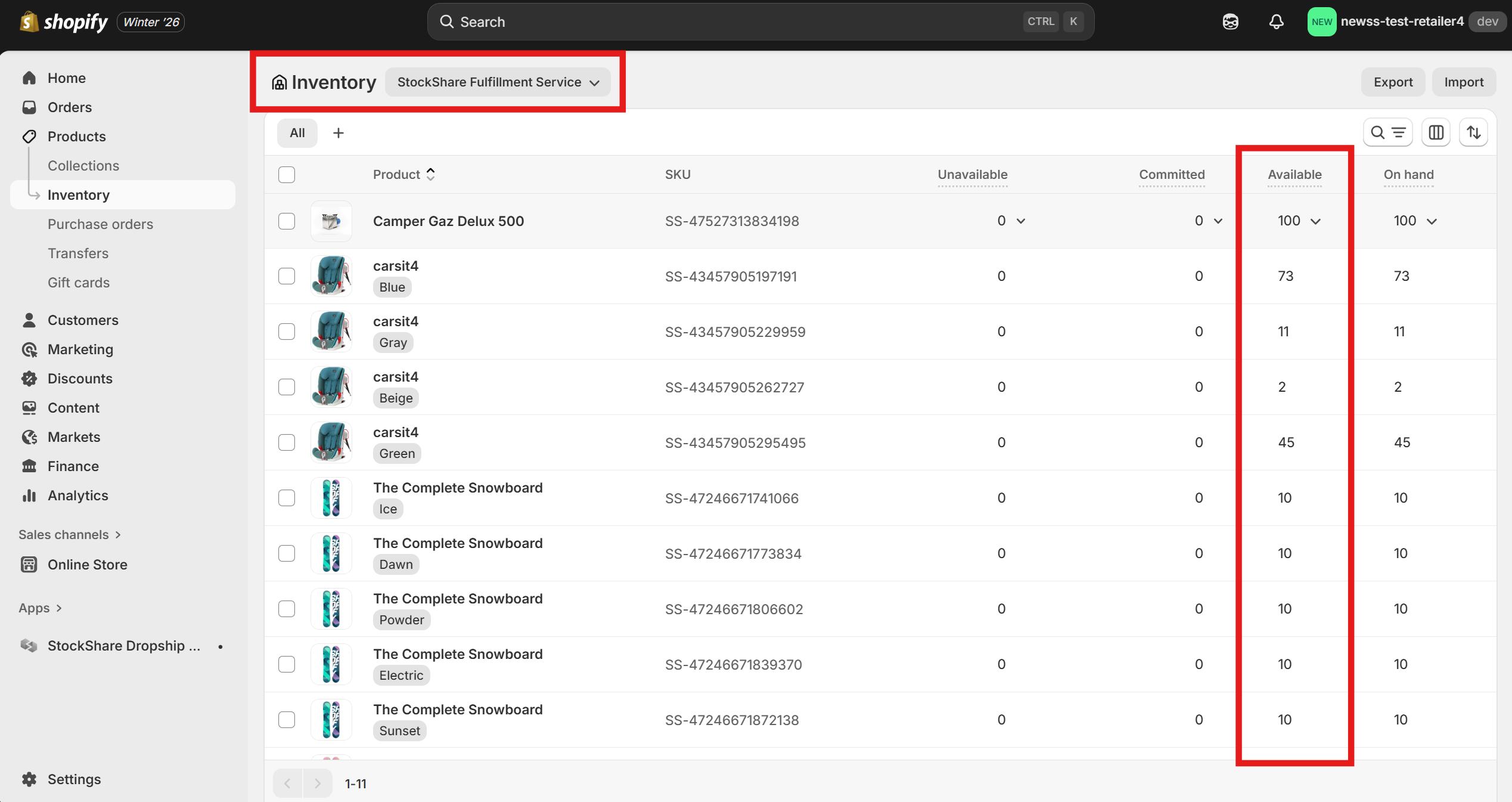
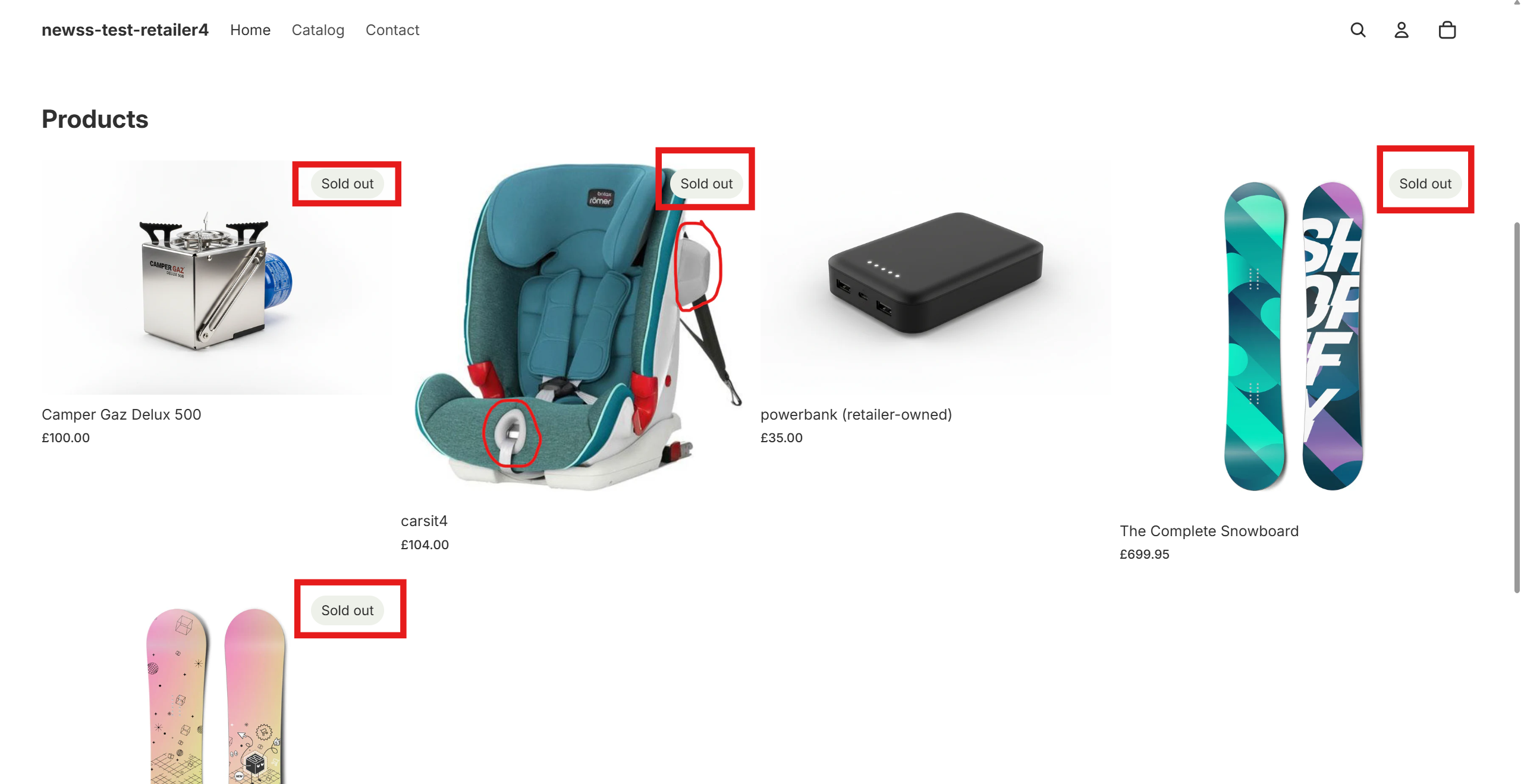
Please follow the below steps:
1. Go to "Settings" in Shopify, then "Shipping Rates" and select the Shipping Rate Profile to use for StockShare products (alternatively you can also create a new one and name it yourself).
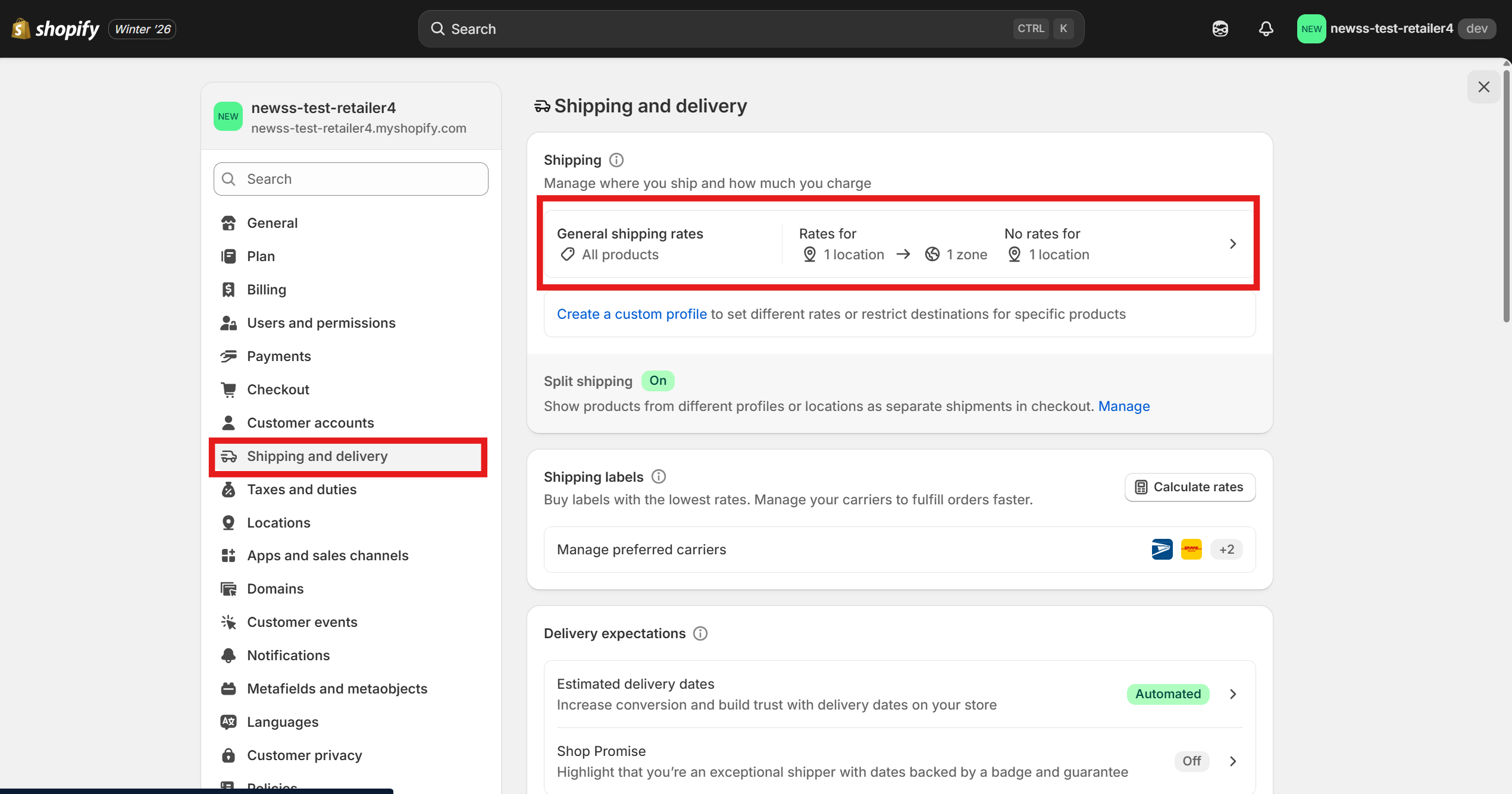
2. Scroll down to "Fulfilment location" and select "Add locations":
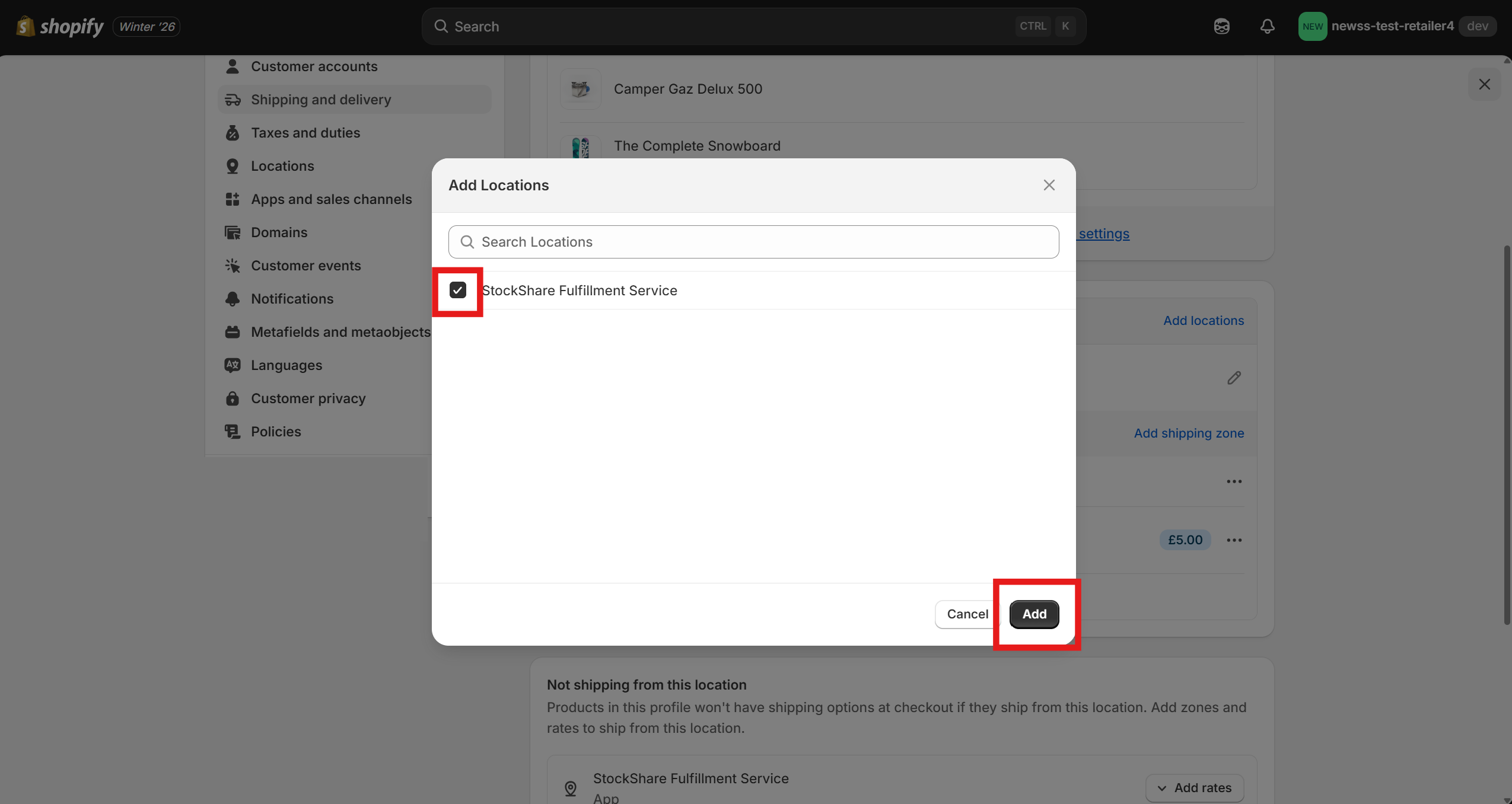
3. Select "StockShare Fulfilment Service" and click "Add":
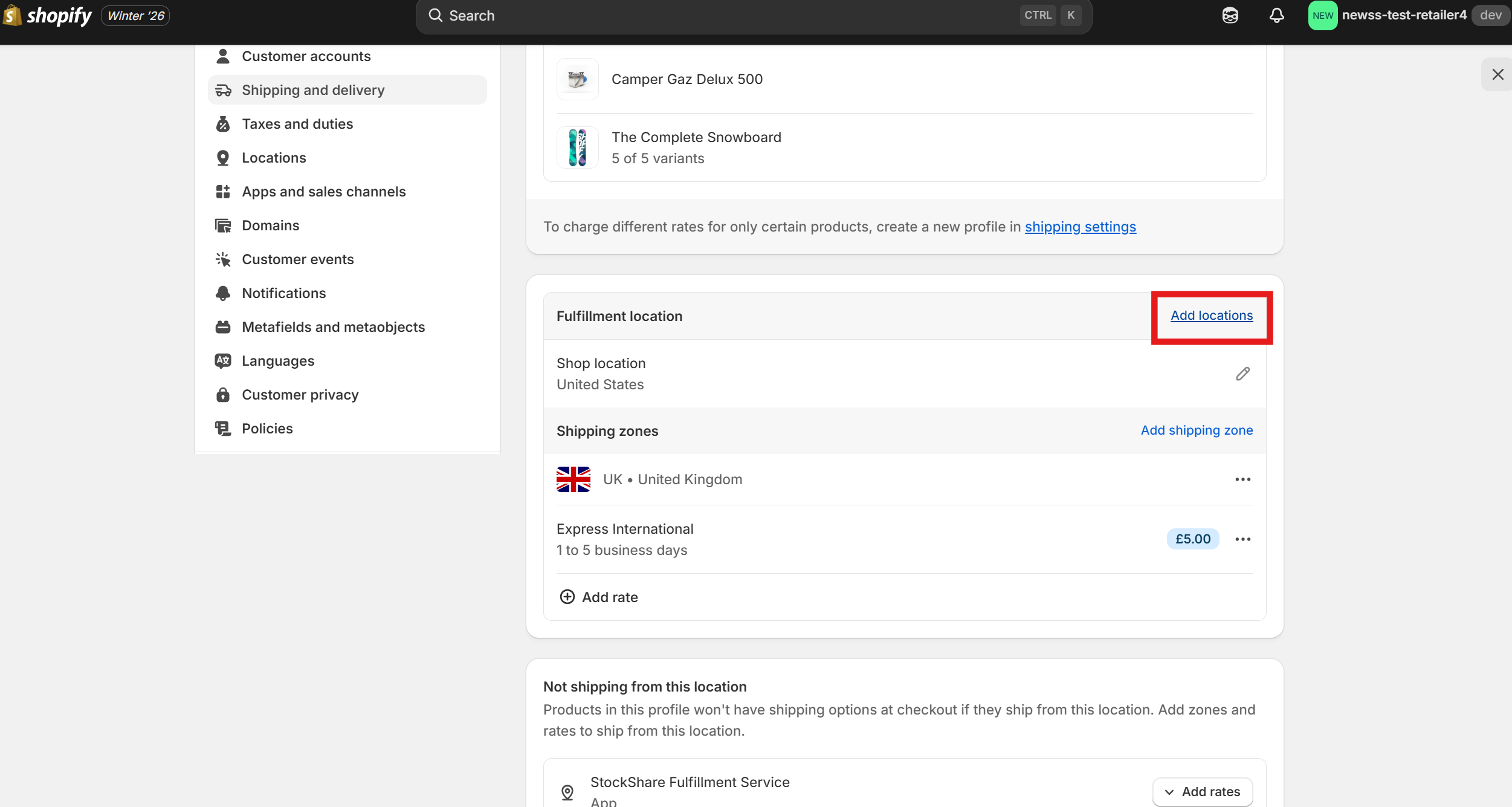
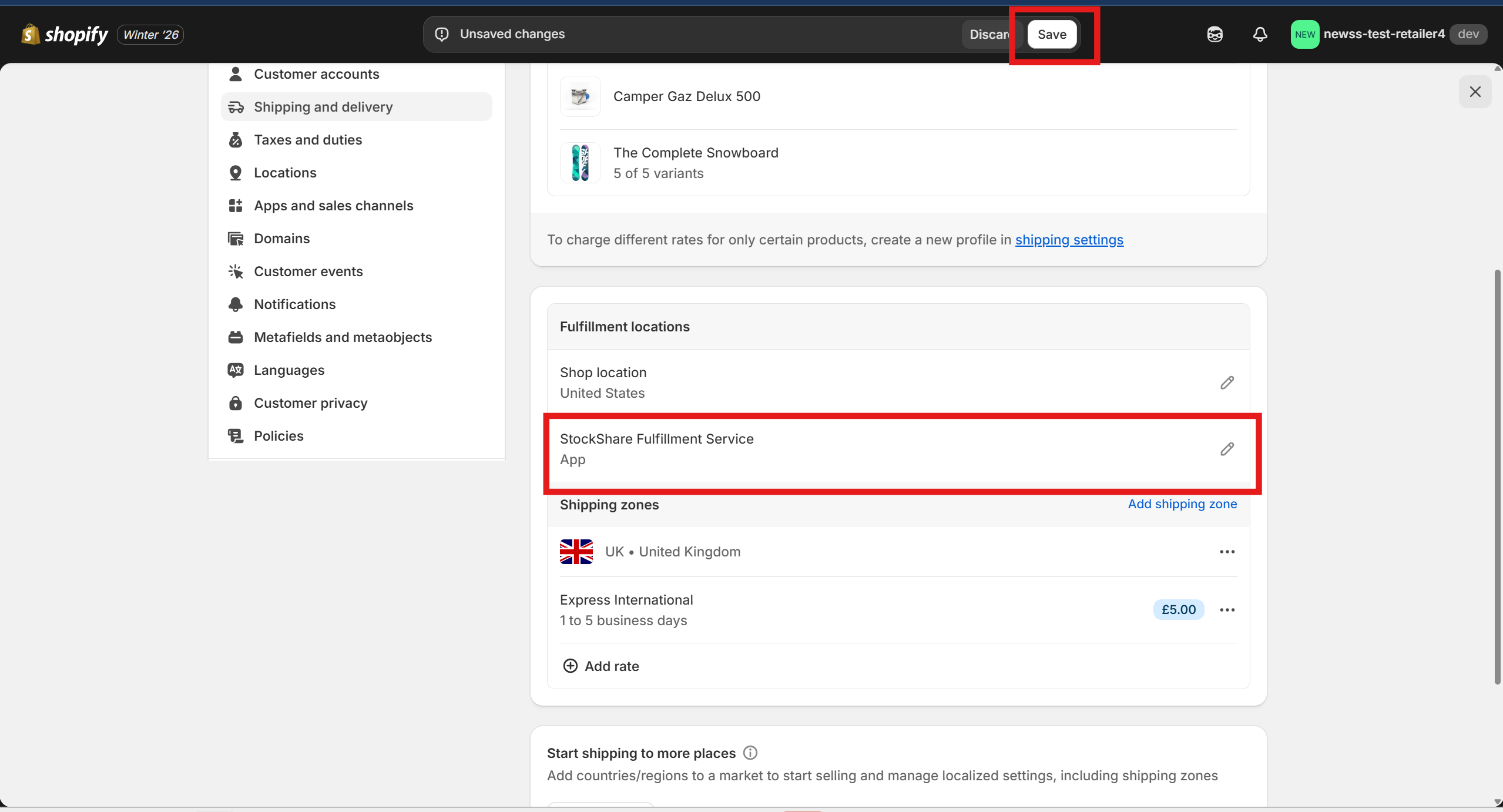
4. Ensure "StockShare Fulfilment Service" is under "Fulfilment Locations" and click the "Save" button.
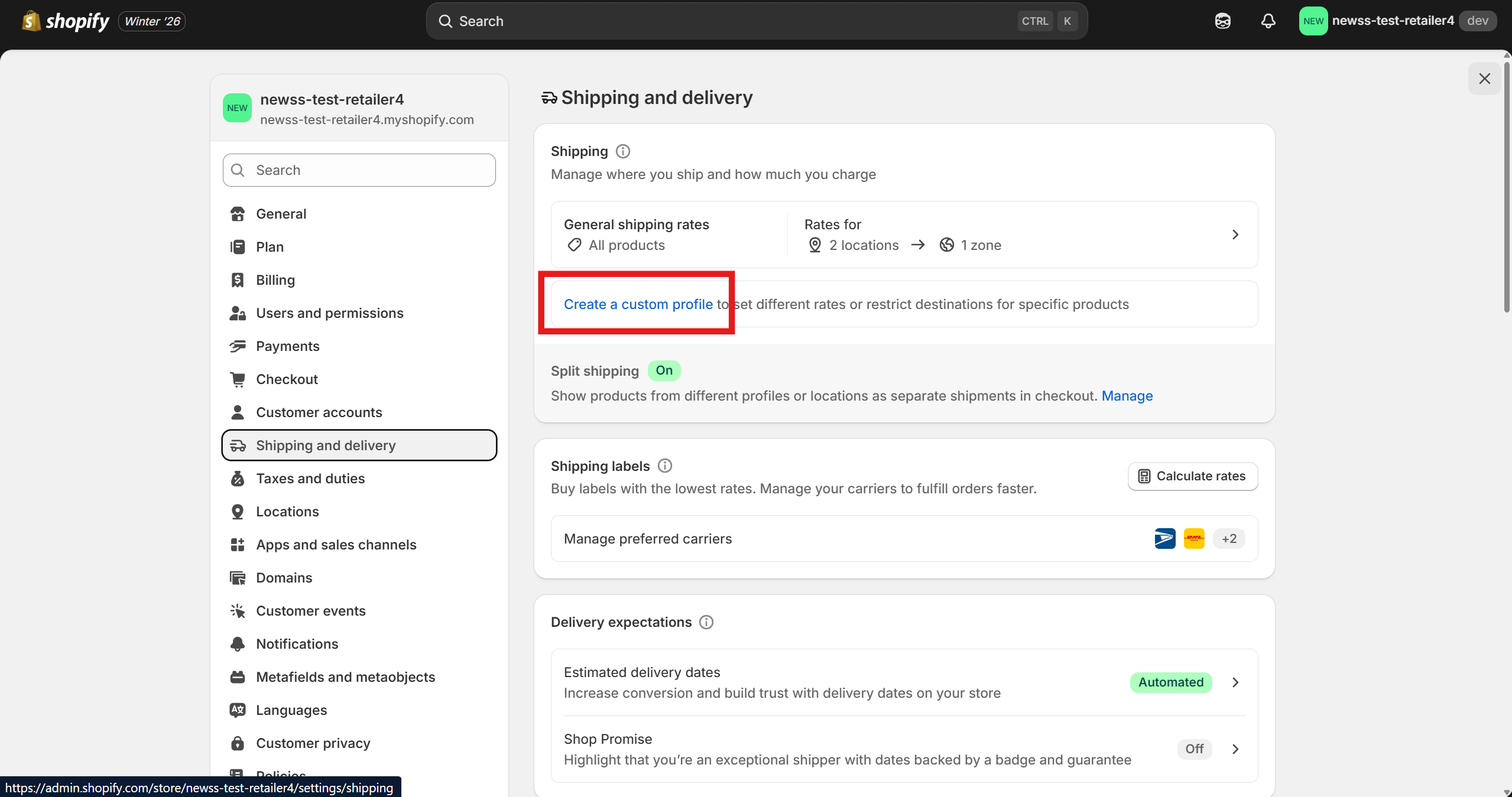
5. Alternatively, you can create a custom profile for StockShare products:
More details about Shopify shipping profiles and rates can be found here: https://help.shopify.com/en/manual/fulfillment/setup/shipping-rates
Was this article helpful?
That’s Great!
Thank you for your feedback
Sorry! We couldn't be helpful
Thank you for your feedback
Feedback sent
We appreciate your effort and will try to fix the article
