Pricing
Products from your Shopify store are initially uploaded to StockShare with the RRP that already exists in your store.
- Your RRP that is shared with retailers is inclusive of tax.
- If your product is inclusive of tax, you need to set the tax rate.
- The retailer will receive the commission as set by you.
- Shipping is set at the product level and charged separately as a fee to the retailer.
IMPORTANT NOTE: If you want to adjust the RRP in Stockshare you must set the RRP at the product variant level NOT the product level. By Default your product price is always set to the product RRP pulled from your Shopify ecommerce store, to ensure you don't have products that have a price of $0, thereby reducing risks around negative product margins.
How to set your Commissions and Shipping Fee
Initial Setup
When you initially establish your Stockshare connection, you will be provided an onboarding process to set your base commission and shipping fees. See image below.


IMPORTANT
If you skipped these steps, before being able to "bulk edit" shipping and commission, you must set your base commission and shipping in your account under settings. Please follow these steps:
1. Go to your main StockShare Dashboard.
2. Navigate to "Settings", then "Business Detail"
3. Scroll down to "Product Commission and Shipping"
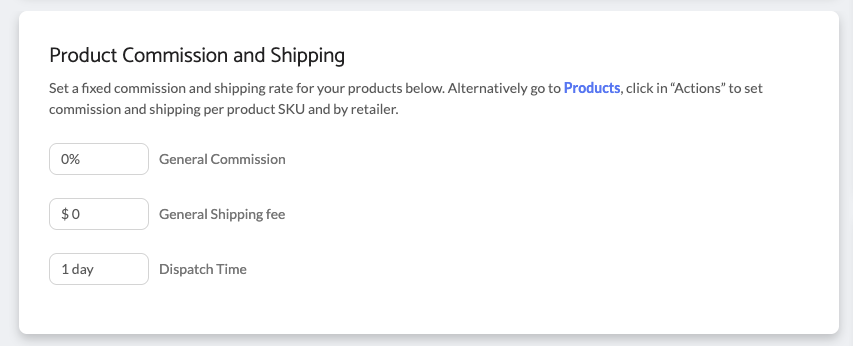
4. Set your general commission and shipping which will apply to all Retailers.
Once these steps have been completed, you can then bulk edit and customise the commission and shipping per Retailer.
Bulk Commission and Shipping settings in the StockShare Dashboard
In the event you would like to change commissions or shipping fees for specific products or retailers (after setting up your base default commission and shipping in your account) you can follow the below process.
- Login to your StockShare supplier account.
- Click on the products tab.
- Choose "List view" on right of screen (highlighted in blue with 3 lines)

4. Click the box selector next to the products you wish to set the commission/shipping for. A blue tick indicates selection.
5. Click the "Action" dropdown to see the options for setting commission or shipping fees on the product.

6. With your relevant products selected select "Set Commission" or "Set Shipping"
7. The number of selected products to edit will be highlighted. Note you can also elect to update all products if desired.
8. Select the Retailers you would like this commission to apply to. You have the ability to select one, multiple or all retailers you are connected to.

Setting Commission
Set the 'Percentage' commission you would like to pay to retailers on your products RRP. Your wholesale price for the selected products you receive will be equal to your set RRP minus Commission minus tax.

Setting Shipping
Set the shipping fee $ you would like to apply to the selected products and retailers.

Once the above Commissions and Shipping fees have been applied to your selected products you can return to the product screen and view the relevant updates. If the products have not been published they will then require selection to publish the updated to your retailers.

Helpful Links & Files
Was this article helpful?
That’s Great!
Thank you for your feedback
Sorry! We couldn't be helpful
Thank you for your feedback
Feedback sent
We appreciate your effort and will try to fix the article