If you don’t have a dedicated preorder app installed in Shopify but you want to mark only specific variants as preorder, Shopify currently requires that all variants of that product be tagged as preorder when syncing to StockShare.
How this works with StockShare
1. Tag the relevant product variants in Shopify as “preorder”. Here is a useful article: https://help.shopify.com/en/manual/products/purchase-options/pre-orders/setup
(Note: This will apply to all variants in Shopify, due to platform limitations.)
2. These tagged products will appear under the Preorder tab inside your Preorder Profiles in StockShare — making it easy for you to identify and verify preorder items.
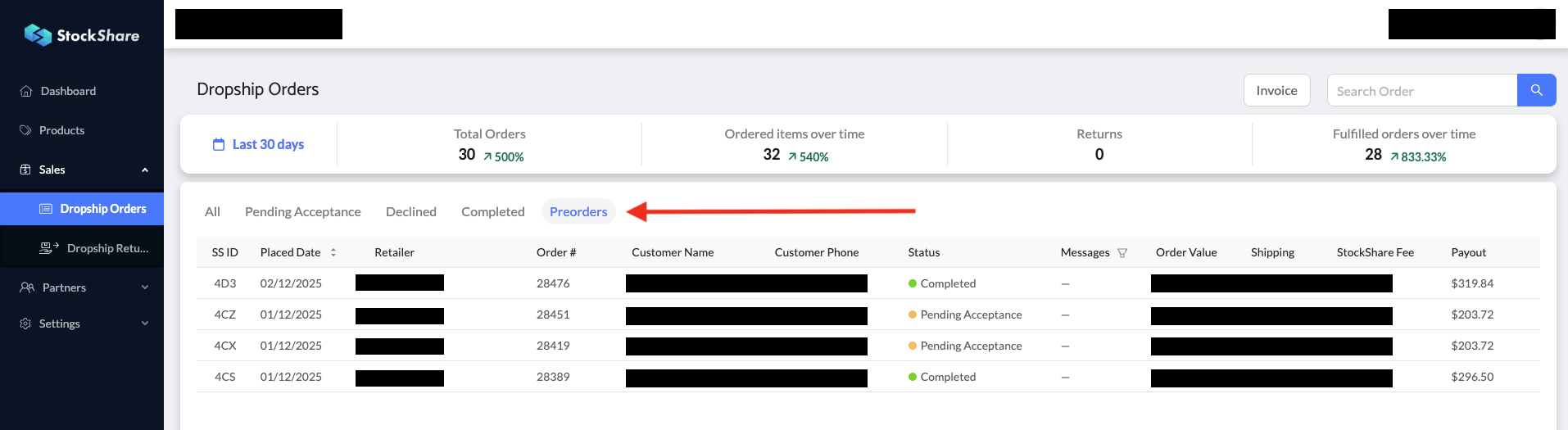
3. When an order is placed:
- If the product is tagged "preorder" in Shopify but isn’t actually a preorder product in StockShare, simply:
- Treat it as a normal order
- Process and fulfil through Shopify as usual
How to check if the product variant is preorder or not in StockShare
- Click into the preorder in StockShare
- Click into the order and check the order SKU code and match it to the variants list on the right to identify if it has available stock or not.
Was this article helpful?
That’s Great!
Thank you for your feedback
Sorry! We couldn't be helpful
Thank you for your feedback
Feedback sent
We appreciate your effort and will try to fix the article